Click... whirrr... chk-chk-chk.
That was the sound of my old gaming PC every time I wanted to load… well, anything. It was a soundtrack of pure frustration. I’d hit the power button, walk out of the room, fill up a glass of water, walk back, and then my computer would finally be at the Windows login screen. And gaming? My buddies were already in the dropship yelling at me while I was staring at my second loading screen just to get into the main menu.
That digital “whirrr” was the sound of my patience evaporating. The culprit, of course, was my old, slow, mechanical hard disk drive (HDD).
If this sounds painfully familiar, I’ve got fantastic news. The single best, most transformative upgrade you can give an aging computer isn’t a new graphics card or more RAM. It’s an SSD. The difference isn’t just “faster.” It’s the difference between waiting and doing.
But then comes the big, scary question. What about all my stuff? What about Windows? My settings? My programs? The idea of spending an entire weekend reinstalling everything from scratch is a nightmare. Thankfully, you don’t have to. You can move your Windows OS from an HDD to an SSD, a process we call “cloning.” It copies your entire system—files, programs, and all—onto a new, lightning-fast drive.
It sounds technical. It sounds intimidating. I get it. The first time I did this, I was genuinely terrified I’d press the wrong button and wipe out my whole life’s worth of files. But I’m here to walk you through it, step-by-step. I’ve done this dozens of times now, and I’ve made all the mistakes so you don’t have to.
Let’s get this done.
More in Motherboards & Storage Category
difference between M.2 SATA and M.2 NVMe
Does an NVMe SSD improve gaming performance
Key Takeaways
Before we dive in, here’s the “too long; didn’t read” version of what you’re about to learn:
- The Goal: We are moving your entire Windows operating system (plus all your files and programs) from your slow old Hard Disk Drive (HDD) to a super-fast Solid-State Drive (SSD).
- Cloning vs. Fresh Install: Cloning (which we’ll focus on) makes an exact 1-to-1 copy of your drive. A fresh install means starting over from zero. Cloning is faster and keeps all your settings.
- Essential Hardware: You will need three things: 1) The new SSD, 2) Cloning software (many are free or come with the drive), and 3) A way to connect the new SSD to your computer before you install it, usually a SATA-to-USB adapter.
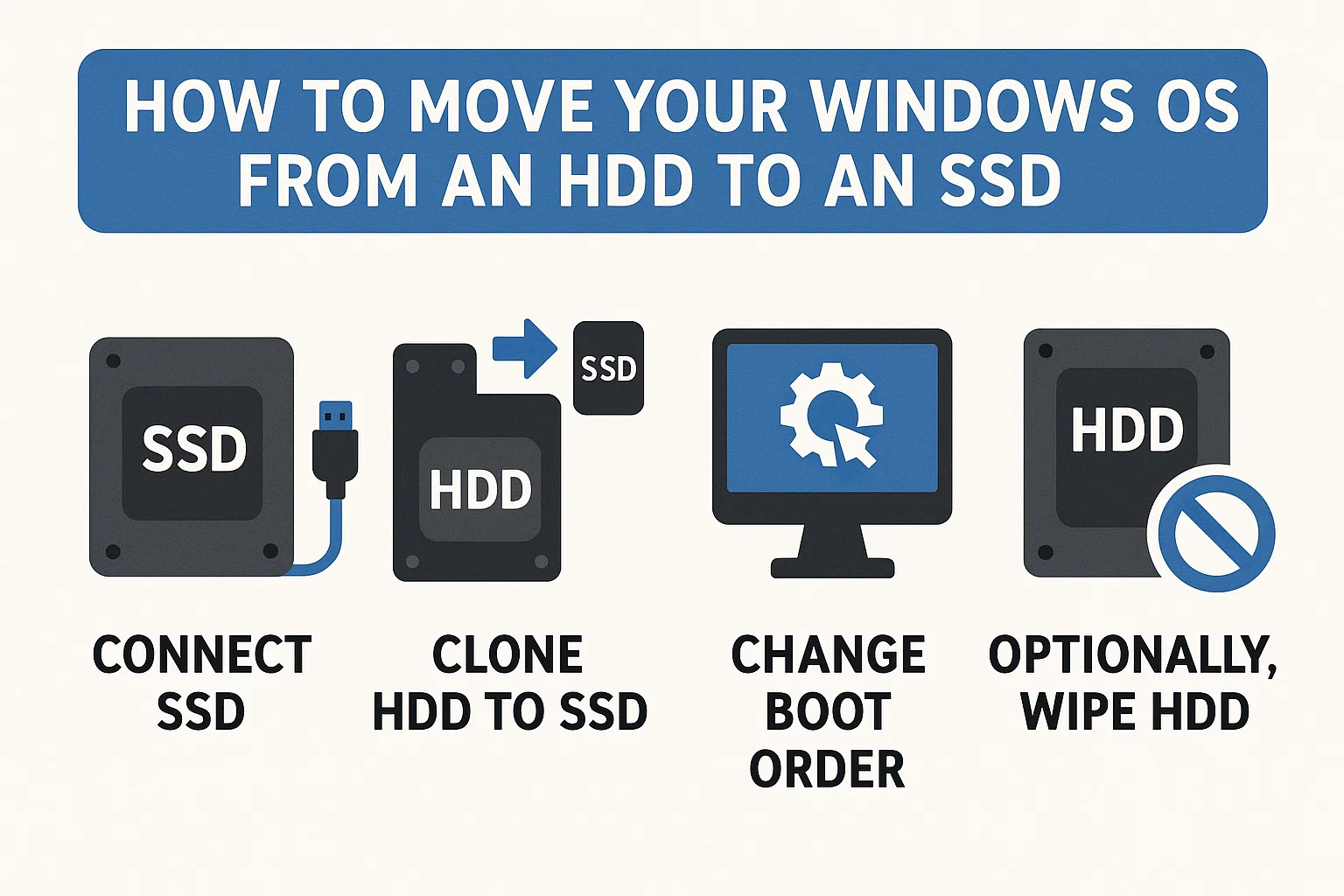
- The Process: The workflow is simple: Connect the new drive externally, run the cloning software, then physically swap the old drive for the new one inside your computer.
- The Result: Your computer will boot in seconds, programs will open instantly, and those game loading screens will be a distant memory.
So, What’s the Real Difference? Am I Just Wasting Money?
This is a fair question. If your computer works, why drop $50 or $100 on a new part?
Let me be blunt: an SSD is the most impactful upgrade you can make. It’s not a gimmick. It changes the entire feel of your computer.
How Does an HDD Even Work? (The Old Tech)
Think of your old HDD as a tiny, intricate record player. Inside that metal box, there’s a physical, spinning platter—like a stack of CDs—that holds all your data. A tiny, mechanical arm called a “read/write head” zips back and forth, frantically trying to find the bits of data you’ve requested.
When you boot Windows, that little arm has to find thousands of different tiny files scattered all over that spinning platter. It’s a physical, mechanical process. It takes time. That’s the “whirrr” and “chk-chk” you hear. It’s literally “seeking” your data.
And How Is an SSD Different? (The New Tech)
An SSD (Solid-State Drive) has zero moving parts. None.
It’s essentially a large, sophisticated USB flash drive. All your data is stored on interconnected flash memory chips. When you ask for a file, there’s no spinning platter or zipping arm. The controller just says, “Ah, the file is in block 5, row 12,” and grabs it electronically at nearly the speed of light.
This is why it’s so much faster. It’s not just a little faster. It’s a completely different technology.
Will I Actually Feel the Difference, or Is This Just for Benchmark Nerds?
You will feel it more than any other upgrade. This isn’t some abstract number on a chart. It’s a real-world, quality-of-life improvement.
Your computer won’t just boot in 10-15 seconds (down from 1-2 minutes). Every single thing you do will be snappier. You’ll click on Chrome, and instead of that 3-second ‘thinking’ pause, it’s just open. Your inbox is just there. You’ll open that massive Excel spreadsheet, and it won’t even hesitate. Searching for a file on your desktop? The results will appear as you type, not after a 30-second search.
The lag, the stutter, the “waiting for the program to respond”—a huge chunk of that is your computer waiting for the HDD. With an SSD, that bottleneck is gone.
Honestly, after you switch, you’ll wonder how you ever lived with an HDD. You’ll get angry at other people’s slow computers. It’s that big a deal.
Okay, I’m Sold. What Hardware Do I Need to Buy?
Alright, let’s get to the shopping list. Don’t worry, it’s pretty short, but getting the right parts is important.
What Kind of SSD Should I Get? (SATA vs. NVMe)
This is the biggest question, so let’s clear it up. There are two main types of SSDs you’ll see today:
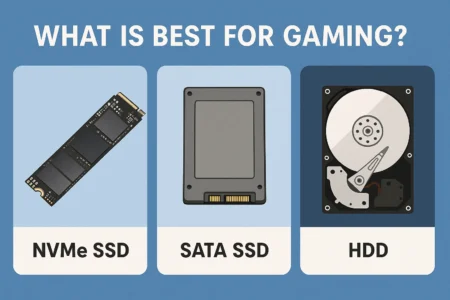
- SATA III (2.5-inch): This is the one that looks like a small, thin plastic rectangle. It uses the same size and connection ports as a traditional 2.5-inch laptop HDD. This is the most compatible, “guaranteed-to-work” option for most desktops and older laptops. If you’re upgrading a computer that’s more than 4-5 years old, this is almost certainly the one you want.
- M.2 NVMe: This one looks like a small “stick of gum.” It’s a bare circuit board that mounts directly onto the motherboard. These are insanely fast—we’re talking 5-10 times faster than a SATA SSD.
So, which one do you get? You have to check your computer.
If you have a desktop, you can literally open the case and look at the motherboard. You’re looking for a small, horizontal slot labeled “M.2” or “PCIe.” If you have a laptop, flip it over and find the exact model number. Google that model number with terms like “specs” or “M.2 slot” or “storage upgrade.”
If you have that M.2 slot, an NVMe drive is a fantastic choice. If you don’t have that slot (or you’re just not sure), just get a 2.5-inch SATA SSD. It will still blow your old HDD out of the water.
Do I Need a Special Cable or Enclosure? (The Magic Wand)
Yes. This is the one thing everyone forgets.
You need a way to connect your new SSD to your computer while your old HDD is still running. How else are you going to copy the data?
For a 2.5-inch SATA SSD, you need a SATA-to-USB 3.0 adapter. This is a simple cable that costs about $10-$15. One end plugs into your new SSD, and the other end plugs into a USB port on your computer.
If you’re using an M.2 NVMe drive, you’ll need an M.2-to-USB enclosure. It’s a small case (looks like a portable battery pack) that you slot your M.2 drive into, and it then connects via USB.
This little adapter is the key to the whole operation. Don’t start the project without it.
How Big Should My New SSD Be?
This is critical. There are two rules here, one hard and one soft.
- The Hard Rule: Your new SSD must have more capacity than the used space on your old HDD. If your 1TB HDD has 300GB of files on it, you need an SSD that’s at least 300GB. Obvious, right?
- The Soft (but really important) Rule: Try to get an SSD that matches, or exceeds, the total capacity of your old drive. If you have a 1TB HDD, get a 1TB SSD.
Why? Because cloning software works best when copying to a drive of the same size or larger. Going from a 1TB HDD (with 300GB used) to a 500GB SSD can be done. But it’s an extra step. The software has to be smart enough to just copy the data and resize the partition. I’ve done it. It’s a headache. I spent an afternoon manually “shrinking” my main partition in Disk Management just to make it fit, and the whole time I was terrified I’d corrupt my data.
It’s just not worth the $20 you save. If you can, just buy a 1TB SSD to replace your 1TB HDD. Prices have dropped so much that this is totally feasible. It makes the cloning process a “set it and forget it” affair.
What’s This “Cloning” Thing? Isn’t It Easier to Just Start Fresh?
This is the great debate. You have two paths to get Windows onto your new SSD.
Path 1: The Fresh Install
This means you install the new SSD, unplug the old HDD, and install a brand-new, factory-fresh copy of Windows. You can download the official tool from Microsoft to create a bootable USB drive. This is the “new apartment” approach. It’s perfectly clean, no cobwebs, no old junk.
The clean-freak in me loves this idea. It’s 100% clean. No old registry errors, no leftover junk from programs you uninstalled years ago, no potential viruses. It forces you to be organized.
But here’s the catch: it takes forever. You have to find all your license keys (Windows, Office, etc.). You must reinstall every single program. Photoshop, Steam, Chrome, your printer drivers—everything. Then, you have to re-configure all your settings: your wallpaper, your mouse sensitivity, your Wi-Fi passwords, your browser bookmarks. It’s a weekend-long project.
Path 2: Cloning (The “Mirror Image” Approach)
Cloning uses special software to make an exact, bit-for-bit copy of your old drive. It’s like taking a perfect snapshot and beaming it over to the new drive. When it’s done, the new SSD is an identical twin of the old HDD, just… faster.
This is the “move all your stuff to the new apartment” approach. Yes, it copies your junk, too. If your old Windows install is slow and buggy, the cloned one will also be slow and buggy (though the SSD speed will hide a lot of it).
But the convenience is impossible to beat. The cloning process itself might take an hour or two, but you can walk away. It’s a “one-and-done” deal. You keep everything. Your desktop, your files, your saved game progress, your browser history, your weird custom mouse cursor. When you boot up from the new drive, it will be exactly where you left off.
My recommendation? Clone it. A fresh install is technically “better,” but the sheer convenience of cloning wins every time.
Do I Need to ‘Clean Up’ My Old Drive First?
This is a great question. You’re about to make a perfect copy of your drive. Do you really want to copy all that junk?
Should I Finally Empty My 50GB Recycle Bin?
Yes. Do it now. The cloning software is going to copy everything, including the contents of your Recycle Bin. That’s 50GB of data you’re copying for no reason. Emptying it first will make the cloning process faster.
What About Deleting Old Games and Files?
This is your moment for digital spring cleaning. That game you haven’t played in three years? Uninstall it. Go through your “Downloads” folder and delete all those old PDF menus and 1-gigabyte files named “setup.exe.” Do your ‘digital spring cleaning’ before you clone, not after. The less data you have to copy, the faster this whole thing goes.
Do I Need to Run a Virus Scan?
Absolutely. You are about to carve this drive’s “soul” into a new piece of hardware. The last thing you want to do is carefully copy a keylogger or some annoying malware onto your pristine, fast new drive. “Garbage in, garbage out,” as they say. Run a full, deep scan with your preferred antivirus before you start the clone.
What About Defragging? I Heard That’s Good.
No. Do not defrag your HDD before you clone.
Defragging is a process that physically moves all the pieces of your files closer together on the HDD’s spinning platter. This is great for an HDD’s performance. But for cloning? It’s a complete waste of time. The cloning software is doing a block-by-block copy; it doesn’t care where the files are. More importantly, you should never defrag an SSD. It’s actively harmful, as it causes a huge number of unnecessary read/write cycles and shortens the drive’s life for zero performance gain.
How Do I Actually Do the Clone? (The Main Event)
Okay, you’ve got your new SSD and your SATA-to-USB adapter. Your coffee is full. Let’s do this.
Step 1: What’s the First Thing I Do With My New SSD?
You plug it in. Not inside the computer. You use that adapter cable. Plug the SATA end into the new, empty SSD and plug the USB end into a blue (USB 3.0) port on your computer.
Windows will make the happy “b-ling!” sound to tell you it’s connected. But then, you might run into the first big “uh oh” moment.
Help! My Computer Can’t See the New Drive!
The first time I did this, this is where I panicked. I plugged in my shiny new Samsung SSD… and… nothing. It didn’t show up in “My Computer.” I thought the drive was dead. I thought the cable was dead. I was sweating.
It’s not broken. It’s just new.
Brand new drives are “uninitialized.” They don’t have a file system. You have to tell Windows how to talk to it. It’s easy.
- Right-click on the Start button (or press
Win + X). - Select “Disk Management”.
- A window will pop up. Disk Management will see the new drive and a pop-up will immediately ask you to “Initialize Disk.”
- It will ask you to choose “MBR” or “GPT.” Just choose GPT. It’s the modern standard. Click OK.
- Now you’ll see your new drive in the bottom panel. It will say “Unallocated.”
- Right-click on that “Unallocated” space and choose “New Simple Volume.”
- A wizard will pop up. Just click “Next,” “Next,” “Next” through the whole thing. You can assign it a drive letter (like D: or E:) and give it a name (“New SSD”).
Now it will show up in “My Computer.” You’ve just formatted the drive. Phew. Crisis averted.
Step 2: What Cloning Software Should I Use? Are the Free Ones Safe?
This is the heart of the operation. The software does all the heavy lifting.
- Manufacturer’s Software (The Best Choice): Did you buy a Samsung SSD? They have “Samsung Data Migration” software. Did you get a Crucial or Western Digital drive? They have a custom version of “Acronis True Image.” These tools are free, designed specifically for your drive, and are dead simple. Samsung’s is almost too simple; it’s just “Source,” “Target,” “Go.” Acronis gives you more buttons to press. Use this if you can.
- Macrium Reflect (The Old Champion): This used to be the free king. It’s still incredibly powerful and reliable, but now it’s a paid product. If you have an old (version 8 or older) free copy, it’s great.
- Clonezilla (The Expert’s Tool): It’s free, open-source, and looks like something from 1995. It’s powerful as all get-out, but it is not user-friendly. One wrong click and you could wipe your source drive. I’d avoid this one unless you’re very, very confident.
My advice: Check your SSD manufacturer’s website first. 99% of the time, they have a free cloning tool for you to download.
Step 3: Can You Walk Me Through the Cloning Process?
The exact clicks will vary by software, but the concept is identical for all of them.
- Launch the cloning software. (e.g., Samsung Data Migration).
- Select the Source Disk. This is the most important step. The Source is your old drive. It’s the one that has Windows on it right now. It will probably be “Disk 0” or “C:”. The software will show you the partitions (C:, a recovery partition, etc.). Select the entire disk.
- Select the Target (or Destination) Disk. This is your new drive. It’s the empty one you just initialized, connected via USB. Double-check that it’s the right one!
- Confirm the settings. The software will show you a “before” and “after” map. It will show your C: drive being copied to the new SSD. If your new SSD is larger (e.g., 2TB) than your old one (e.g., 1TB), the software will usually offer to “extend the partition” to fill the new drive. You want this. It means your new C: drive will be 2TB, not a 1TB partition with 1TB of un-used space.
- Click “Start,” “Clone,” or “Proceed.”
Now, you walk away.
Go. Seriously. Don’t watch it. It’s like watching paint dry. Depending on how much data you have, this could take 30 minutes or three hours. The best part? Your computer will be silent. No “whirrr” and “chk-chk” while it works. Just… quiet progress.
When it’s done, it will say “Cloning Successful” or “Complete.” Shut down your computer completely.
The Physical Swap (Time to Open the Case!)
The digital part is over. Now for the 5-minute physical part.
What’s the Most Important Safety Step I Can’t Forget?
Before you touch anything inside your computer, you need to ground yourself. You have static electricity in your body, and you can fry sensitive components without ever feeling a shock.
The simple way: After you unplug the power cable from your desktop’s power supply, touch a big, unpainted metal part of the computer case. Just rest your hand on it for a few seconds. This equalizes your electrical charge with the case. Do this before you start handling the drives.
Don’t build on a carpet, and don’t wear fuzzy socks. I’m serious.
Is This Different for a Laptop Versus a Desktop?
Yes, very.
For a Desktop: This is usually easier. You don’t even have to remove your old HDD yet!
- Unplug the computer. Ground yourself.
- Open the side panel.
- Find a spare drive bay and mount your new 2.5-inch SSD. (They’re light; sometimes, just letting it sit in the bottom of the case is fine, though not “proper”).
- Use a standard SATA data cable (a thin red or black one) to connect the SSD to a free SATA port on your motherboard.
- Use a SATA power cable (a wider, flat-ish connector) coming from your power supply to plug into the SSD.
- You’re done. You now have both drives installed.
For a Laptop: This is more of a replacement.
- Unplug the laptop. Remove the battery if it’s external.
- Flip it over and remove the screws holding the bottom panel.
- You’ll see the old 2.5-inch HDD. It’s usually held in a small metal caddy by a few screws.
- Carefully unplug the HDD.
- Unscrew it from the caddy.
- Screw your new SSD into that same caddy.
- Slot the new SSD (in its caddy) right back where the old drive was.
- Put the bottom panel back on.
I’ve Swapped the Drives. What Happens Now?
This is the moment of truth.
How Do I Tell My Computer to Boot from the New Drive?
Your computer is a little dumb. It’s used to booting from the old drive. You have to tell it there’s a new boss in town. This is done in the BIOS (or UEFI on modern machines).
- Plug your computer in and turn it on.
- As it’s booting, immediately start tapping the key to enter the BIOS. It’s usually DELETE, F2, F10, or F12. The boot screen will flash the correct key for a split second.
- You’ll enter a blue or gray (or flashy “gamer”) settings screen.
- Look for a “Boot” tab or “Boot Order” or “Boot Priority.”
- You will see a list of your drives. Your old HDD is probably #1.
- You need to change this. Find your new SSD in the list (it’ll have the model name, like “Samsung 970 EVO”) and make it Boot Option #1.
- Go to the “Exit” tab and select “Exit Saving Changes.”
The computer will restart. Now, instead of looking at the old HDD, it’s going to look at your new SSD first. And since you cloned Windows…
It Worked! What Should I Do Now?
This part is magic.
The first time I did this, I was ready for a 2-minute boot. The “Starting Windows” logo appeared, the little dots spun… once. And I was at my desktop.
I just stared. I thought it had failed. I thought I was at some weird pre-boot screen. But no, it was my desktop. My icons. My wallpaper. It was just… on.
That’s the “ah-ha!” moment. That’s the feeling you’ve been chasing. Open Chrome. Open your email. Open 10 programs. You’ll see. The “wait” is gone. Congratulations, you just gave your computer a new lease on life.
Okay, It Booted. Am I… Done? (The “Victory Lap” Checks)
Hold on. You’re almost done. The hard part is over, but we should do a few quick checks to make sure Windows is treating your new drive properly.
Do I Need to Tell Windows It’s an SSD?
Windows 10 and 11 are very smart about this. They almost always detect the new drive as an SSD and enable a crucial feature called TRIM.
TRIM is basically digital garbage collection. On an SSD, deleting a file doesn’t actually erase it right away. It just marks it as “okay to overwrite.” TRIM is the background process that comes along and properly cleans those blocks, so the drive is ready to write new data at full speed.
You can check if it’s on.
- Click the Start menu and type
cmd. - Right-click “Command Prompt” and select “Run as administrator.”
- Type this exact command and hit Enter:
fsutil behavior query DisableDeleteNotify - You’ll get a response. If it says
DisableDeleteNotify = 0, that means TRIM is ON. You’re good to go. - If it says
= 1, TRIM is OFF. You can turn it on by typingfsutil behavior set DisableDeleteNotify 0.
Is It Really as Fast as You Promised?
Want to see the proof? This is your victory lap. Download a free tool called CrystalDiskMark. It’s a simple, safe program that benchmarks your drive speed.
Run it. You’ll see “Read” and “Write” speeds. Your old HDD was probably chugging along at 100-150 MB/s. Your new SATA SSD will be at 550 MB/s. Your new NVMe drive? You might see 3,000 MB/s or 5,000 MB/s. It’s the “before and after” photo that proves you did a good job.
What Do I Do With My Old HDD?
Don’t throw it away! It’s a perfectly good, (slow) drive.
If you have a laptop: You can buy a cheap 2.5-inch USB enclosure (around $10). Pop your old HDD into it, and boom: you now have a massive external hard drive for backups.
If you have a desktop (and left the old drive plugged in): This is the final, final step. Your computer should be booting from the new SSD (C:). Your old HDD is probably showing up as D: or E:.
But are you sure you’re booting from the new one? Unplug the SATA data cable from your old HDD. Just the one cable. Now, boot your computer. If it boots up normally… you are 100% running on your new SSD.
Now, you can plug the old drive back in (while the power is off, of course). Boot back into Windows. Go to “My Computer.” Right-click on that old drive, and select “Format.”
Wait. Stop. Are you sure?
I’m warning you because I’ve made this mistake. I once formatted my backup drive instead of my old OS drive. My entire music collection… gone. Don’t be me. Double. Check. The. Drive. Letter. Make 100% certain you are formatting the old, slow drive.
Once you format it, you have a massive, empty hard drive. It’s perfect for bulk storage: movies, photos, game installations you don’t play often. You just gave yourself a free backup drive.
So, there you have it.
Moving your Windows OS from an HDD to an SSD feels like a major, terrifying computer-surgery-level operation. But it’s not. When you break it down, you’re just buying three things, running a piece of “copy-paste” software, and swapping a single part.
The fear you have before you start is way bigger than the actual difficulty of the task. And the reward—the sheer, tangible, everyday speed—is worth every single second of it. That horrible “whirrr… chk-chk” sound is gone, replaced by silence.
You’ve got this.
FAQ – How to move your Windows OS from an HDD to an SSD
What is the main benefit of upgrading from an HDD to an SSD?
The main benefit is a significant increase in speed and responsiveness, reducing load times and making your computer feel much faster.
How can I move my Windows OS from my old HDD to a new SSD without reinstalling everything?
You can clone your existing drive using cloning software, which makes an exact copy of your system—including Windows, files, and programs—onto the new SSD.
What hardware do I need to successfully clone my Windows OS from an HDD to an SSD?
You need a new SSD, cloning software (often free from the drive manufacturer), and a SATA-to-USB adapter or an M.2-to-USB enclosure to connect the new drive externally.
What should I do to prepare my old drive before cloning?
You should delete unnecessary files, empty the Recycle Bin, run a virus scan, and make sure to back up important data in case anything goes wrong.
How do I ensure my computer boots from the new SSD after cloning?
You need to enter your BIOS or UEFI settings during startup and change the boot order to set the new SSD as the first boot device, then save and exit.