Is your computer feeling slow? Not just “I-need-to-reboot” slow, but really sluggish. The kind of slow that makes a simple boot-up feel like you’re watching paint dry. You click an icon, go make a sandwich, come back, and maybe the program is thinking about opening. I know that feeling. My first PC build had a massive one-terabyte hard drive, and that “whirr-click-whirr” was the constant soundtrack to my impatience.
If that hits close to home, I have fantastic news.
The single biggest, most noticeable upgrade you can give a modern computer isn’t more RAM. It’s not a new graphics card. It’s ripping out that old hard drive (HDD) or even an older-style solid-state drive (SSD) and replacing it with an M.2 NVMe SSD.
It’s a complete game-changer.
But the name itself, “M.2 NVMe SSD,” sounds like technical nonsense designed to scare you off. It’s not. This guide is me, your tech-savvy friend who’s done this a dozen times, walking you through every single step. We’ll cut through the jargon, figure out what to buy, and go step-by-step through how to install an M.2 NVMe SSD. I’ve made all the mistakes so you don’t have to.
More in Motherboards & Storage Category
How to move your Windows OS from an HDD to an SSD
Key Takeaways
Before we get our hands dusty, let’s get the big picture. Here’s the cheat sheet for this whole operation:
- Check Compatibility. Seriously. This is the #1 mistake. Not all M.2 slots are the same. Not all motherboards can use these drives. Your motherboard manual is about to become your best friend.
- M.2 is the Shape, NVMe is the Speed: M.2 is the “stick of gum” form factor. NVMe is the protocol, the super-fast language it uses to talk to your computer. They are not the same thing.
- Static is the Enemy: A tiny, invisible zap of static electricity from your fingers can kill a component. We’ll cover how to defeat this silent enemy. (It’s easy).
- The Tiny Screw is a Big Deal: Your new, expensive SSD will not come with the microscopic screw needed to hold it down. That screw comes with your motherboard. We’ll find it.
- Clone or Fresh Install?: After you install it, you have two choices: “clone” your old drive (an exact copy) or do a “fresh install” of your operating system. We’ll cover the pros and cons of both.
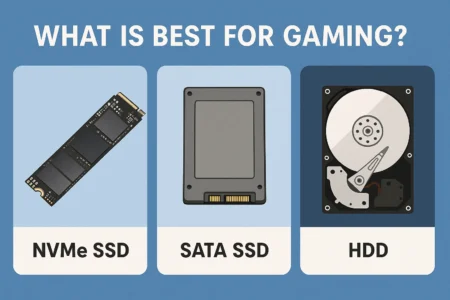
Wait, What’s the Difference Between M.2, NVMe, and SATA?
This question is the source of 90% of the confusion, so let’s clear it up. I still remember standing in a computer store, holding two drives that looked almost identical. The prices were totally different, the boxes were covered in acronyms, and I almost bought the wrong one for my video editing rig.
Let’s break it down.
M.2 (pronounced “M-dot-two”) is just the form factor. It’s the physical shape. You’ve heard it called a “stick of gum,” and that’s exactly what it looks like. It’s small, flat, and plugs right into the motherboard. No cables. Awesome.
But here’s the catch: M.2 is just the connector. Think of it like a USB port. You can plug a mouse, a keyboard, or a flash drive into a USB-A port, and they all do different things. The M.2 slot is the same.
This M.2 slot can use two different protocols (or “languages”) to talk to the rest of the computer:
- SATA: This is the old, slower language. It’s the same language used by those 2.5-inch “boxy” SSDs and your old-school mechanical hard drives. An M.2 drive using the SATA language is still fast—miles faster than an HDD—but it’s stuck at the SATA speed limit.
- NVMe (Non-Volatile Memory Express): This is the new, blazing-fast language. It was designed from the ground up for modern SSDs. Instead of using the clunky old SATA language, NVMe talks to your computer’s brain (the CPU) directly over a super-fast pathway called PCIe (the same one your graphics card uses).
What’s the real-world difference? A SATA SSD tops out around 550 MB/s. A good NVMe SSD can hit 7,000 MB/s or more. We’re talking 10, 12, even 14 times the speed. That is the upgrade you’re here for.
So, when you say “M.2 NVMe SSD,” you’re saying you want the “stick of gum” shape (M.2) that speaks the “super-fast language” (NVMe). Our job is to make sure your computer speaks that language.
How Do I Know if My Computer Can Even Use an M.2 Drive?
This. This is the question you must answer before you spend a single dollar. Trust me, the only thing more frustrating than a slow computer is a brand new, expensive component sitting on your desk that you can’t even use.
Is My Motherboard Compatible?
The easiest way to find out is to grab your motherboard’s manual. Don’t have the paper copy? No problem. Just Google your motherboard’s model name (e.g., “ASUS ROG STRIX B550-F manual”). Find the “Storage” or “Specifications” section in that PDF.
It will tell you, in plain (if technical) English, if you have M.2 slots and what type they are. You’re looking for the magic words:
- “M.2 2280” (This is the size: 22mm wide, 80mm long. It’s the most common size by far).
- “PCIe 4.0 x4” or “PCIe 3.0 x4” (This confirms it uses that fast PCIe pathway).
- “NVMe support” (That’s the jackpot).
You can also just look at your motherboard. Find the small, horizontal slot printed with “M.2.” Often, it’s hiding under a metal plate, which is a heatsink. We’ll get to that.
What About My Laptop? Is This Upgrade Possible?
Laptops are a different beast. They are much, much trickier.
You can’t just pop the side panel off. You have to do your homework online. Your best bet is to Google your exact laptop model number (e.g., “Dell XPS 15 9510 M.2 upgrade”).
You’re looking for official specs from the manufacturer, teardown videos on YouTube, or forum posts from other owners. Some laptops are a breeze to upgrade and have an empty M.2 slot just waiting for you. Others, especially the ultra-thin ones, have the storage soldered directly to the motherboard. If that’s the case, you’re out of luck.
You must confirm your specific model has a user-accessible, NVMe-compatible M.2 slot before you buy anything.
Does My Motherboard Support Booting from NVMe?
This is a subtle but painful “gotcha” for folks with slightly older PCs (think 2014-2016). My buddy ran right into this. We spent a whole Saturday trying to install a shiny new NVMe drive in his older build. We got it in, the computer could see it as storage, but the BIOS (the startup menu) refused to see it as a bootable drive. We couldn’t install Windows on it.
We were stuck.
After hours of troubleshooting and getting more and more frustrated, we finally found a beta BIOS update on some obscure forum. We “flashed” that, and it magically appeared.
So, if your PC is from that era (e.g., a Z97 chipset), do a quick search: “[Your Motherboard Model] boot from NVMe.” Most modern boards from the last 5-7 years won’t have this problem at all. But a five-minute search now can save you a five-hour headache later.
What Tools Do I Actually Need for This?
Okay, you’ve done your research. Your motherboard is ready. You’ve ordered your beautiful new M.2 NVMe SSD. Now what? Let’s build your toolkit.
The good news is, you’re not performing open-heart surgery. You need very few tools.
- Your new M.2 NVMe SSD: The star of the show.
- A small Phillips-head screwdriver: A PH0 or PH1 size is usually perfect. One of those cheap jeweler’s screwdriver sets is a fantastic investment for any PC owner.
- Your motherboard manual: Yes, again. It’s the map that will show you exactly where the M.2 slot (your treasure) is buried.
- An anti-static wrist strap (Highly Recommended): This is a strap that clips you to the metal case of your PC, safely grounding you. It’s cheap insurance.
- (Optional) A magnetic-tipped screwdriver: You will be working with screws that are, and I’m not exaggerating, the size of a grain of rice. A magnetic screwdriver that holds the screw for you feels like a superpower.
- (Optional) A flashlight or headlamp: PC cases are dark, shadowy places. Being able to see what you’re doing is always a plus.
That Tiny Screw… Where Does It Come From?
This is the #1 panic moment for first-time installers. I guarantee it.
You’ll open your new $100+ SSD, and the box will contain… the SSD. And maybe a little booklet. You’ll see the hole on the end of the drive, and you’ll see the threaded post (the “standoff”) on your motherboard. But there is no screw.
You will panic. You will think you’ve been ripped off. You will think you lost it.
Calm down. The M.2 screw does not come with the SSD.
It comes with the motherboard.
It’s almost always in one of two places:
- In a tiny, clearly-labeled plastic baggie that came with your motherboard box (the one you probably threw in a drawer).
- Already installed on the motherboard, either screwed directly into the standoff or holding a heatsink in place.
My first M.2 install? I spent a solid 20 minutes on my hands and knees, convinced I had dropped a screw I never had in the first place. I tore my office apart. I was getting angry. Finally, I looked really closely at the motherboard… and there it was, the standoff and the screw, pre-installed and waiting for me.
I felt like an idiot. It’s a rite of passage. So, before you panic, check the motherboard manual and the board itself. It’s there. I promise.
How Do I Prepare My PC for Surgery?
Let’s get this done. Safety first, for both you and your computer.
- Shut It All Down: Do a proper shutdown from Windows. Don’t just hold the power button.
- Kill the Power: Go to the back of your PC and flip the switch on the power supply (PSU) to the ‘O’ (Off) position.
- Unplug Everything: Unplug the main power cable from the back of the PC. Then, unplug your monitor, mouse, keyboard, and everything else.
- Discharge: Press and hold your PC’s main power button (on the front of the case) for about 5-10 seconds. This will discharge any lingering electricity in the system. Observed a a.
- Move to a Safe Spot: Move your PC case to a well-lit, clear workspace. A big table is perfect. Don’t build on a carpet, especially in socks. That’s a static-generating machine.
- Open the Case: Unscrew and remove the main side panel. For most PCs, this is the left-side panel (when looking from the front).
You are now ready to operate.
Where’s the M.2 Slot Hiding?
This is where your map (the manual) comes in handy. M.2 slots are sneaky.
- The “Obvious” Spot: Often, it’s right below the big CPU cooler, out in the open.
- The “Graphics Card” Spot: Sometimes, it’s located underneath your graphics card. This is a bit of a pain, as you’ll have to (carefully!) uninstall your graphics card first to get to it.
- The “Heatsink” Spot: On most new motherboards, the M.2 slot is hidden under a sleek-looking metal heatsink. This is great for cooling, but it adds a step.
- The “Weird” Spot: I’ve seen them tucked away near the bottom edge of the board or even on the back of the motherboard (a real pain if your PC is already built).
Your manual will show you exactly where all your M.2 slots are.
What’s This Metal Cover Over the Slot?
If your slot is covered by a piece of metal, that’s an M.2 heatsink. This is a good thing! NVMe drives can get toasty, and this helps keep them cool.
You’ll need to unscrew it. It’s usually held in by one or two small screws.
- Carefully unscrew the heatsink and lift it off.
- On the underside, you’ll see a soft, gummy pad. This is the thermal pad.
- IMPORTANT: This thermal pad will be covered by a thin, blue or clear plastic film. YOU MUST PEEL THIS PLASTIC FILM OFF.
I’ll say it again. Peel. The. Plastic.
I made this mistake once. On a new build, I was so excited that I just screwed the heatsink on, plastic and all. The drive was hitting 90°C (194°F) under load and slowing itself down to a crawl. I couldn’t figure it out. Finally, I took it apart, and there was that little piece of blue plastic, slightly melted and mocking me.
Don’t be me. Peel the plastic.
Okay, How Do I Physically Install the Drive?
This is the moment. It’s going to take you less than 60 seconds.
First, Let’s Talk About Static Electricity, Right?
Yes. We’re not skipping this. If you have your anti-static strap, put it on. Clip the alligator clip to a bare metal part of your PC’s case.
If you don’t have a strap, you can still be safe. Before you reach into the case to grab the drive, just touch a bare metal part of the PC case (like the frame or the power supply casing) with your hand. This “grounds” you, equalizing the electrical charge between you and the PC. Do this every time before you touch a component.
Putting the “Stick of Gum” in the Slot?
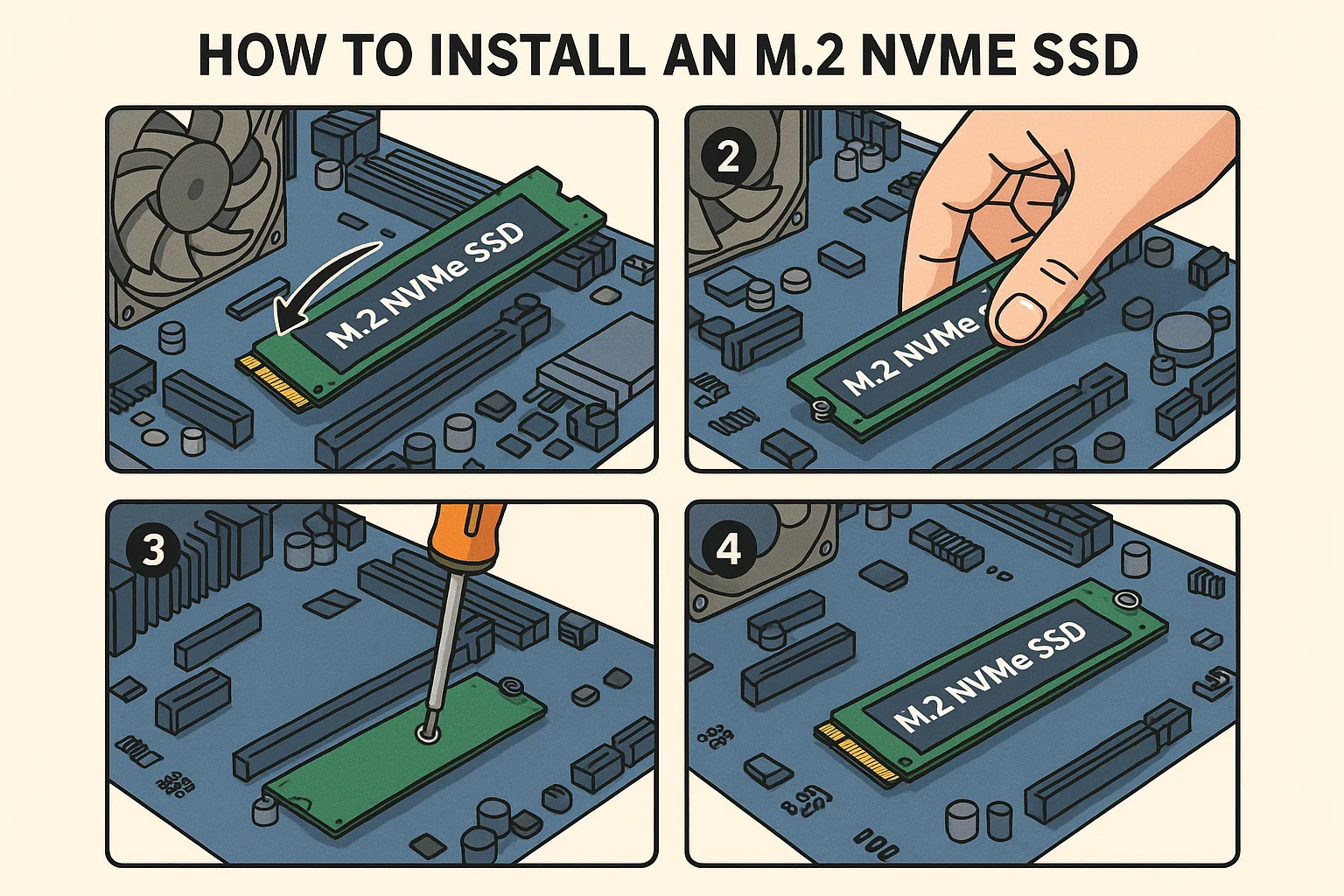
- Check the Standoff: Look at the motherboard. You’ll see the M.2 slot and a series of small, threaded holes for different drive lengths (2242, 2260, 2280). Your drive is almost certainly a 2280. Make sure the little brass standoff is screwed into the “2280” hole. If it’s in the wrong spot, unscrew it and move it.
- Hold the Drive: Pick up the M.2 SSD by its edges. Don’t touch the gold connector pins or the black chips on top.
- Line It Up: Look at the gold connector. See the notch? Now look at the M.2 slot. See the “key” (the little plastic divider)? They only fit one way.
- Insert at an Angle: Gently slide the drive’s connector into the slot. You should be holding it at about a 30-degree angle to the motherboard. It should slide in smoothly and stop. Don’t force it.
Securing the Infamous Tiny Screw?
- Press It Down: Gently press the other end of the M.2 drive down. It will pivot, and the semi-circle cutout on the end will line up perfectly with the brass standoff you checked in step 1.
- Screw It In: While holding the drive down with one finger, use your other hand (and your magnetic screwdriver, if you have one!) to insert the tiny M.2 screw.
- Be Gentle: Tighten the screw until it’s “snug.” That’s it. This isn’t a car tire. You don’t need to crank on it. Overtightening can crack the drive’s circuit board. Just snug.
- Heatsink (If You Have One): If you removed a heatsink, now is the time to put it back on, making sure you peeled that plastic film.
That’s it. You’ve physically installed an M.2 NVMe SSD. Take a second. You just did the “hard” part.
I’ve Got It In. Am I Done?
Not quite, but the physical labor is over. Now we have to tell your computer what to do with this new, ultra-fast drive.
Go ahead and put the side panel back on your PC, move it back to your desk, and plug everything back in (power, monitor, keyboard, mouse).
How Do I Make My Computer “See” the New Drive?
Power on your computer. One of two things will happen: it will boot into Windows just like always, or it will boot into the BIOS/UEFI setup screen. Both are fine.
Entering the BIOS/UEFI
If it boots into Windows, just restart it. As it’s booting back up, you need to repeatedly press your “magic key” to enter the BIOS/UEFI. This key is different for every manufacturer, but it’s usually DEL, F2, F10, or F12. It will flash on the screen for a second, “Press [KEY] to enter Setup.”
Once you’re in this text-based (or sometimes graphical) menu:
- Find the “Storage” or “Boot” section.
- You’re just looking for confirmation. You should see your new NVMe drive listed! It’ll have its model name, like “Samsung 980 Pro” or “Kingston NV2.”
- If you see it, you’re golden. The hardware is installed correctly.
- While you’re here, look for a setting called “Storage Controller” or “SATA Mode.” You want to make sure this is set to AHCI. It almost always is by default, but it’s good to check.
- Now, you can “Save and Exit.”
Should I Clone My Old Drive or Start Fresh?
This is the big philosophical question. You have two choices for your operating system (Windows, Linux, etc.).
What’s the Case for a Fresh Install?
This is my personal, professional, and spiritual recommendation. A “fresh install” means you install a brand-new, clean copy of Windows onto your new NVMe drive.
Pros:
- It’s clean. You get rid of years of digital clutter, old driver files, registry bloat, and mystery programs.
- It’s fast. Your PC will feel brand new, because it is.
- It’s stable. You avoid any weird conflicts from copying an old system to new hardware.
Cons:
- It takes time. You’ll have to back up all your important files (documents, photos, bookmarks) to an external drive or cloud service first.
- You have to reinstall your programs. You’ll need to reinstall Chrome, Steam, Office, and everything else.
To do this, you’ll need a Windows Installation USB. You can create one for free straight from Microsoft’s official site. You’ll boot your PC from that USB, and when it asks, “Where do you want to install Windows?” you’ll select your new, empty NVMe drive.
What If I Really Want to Clone My Drive?
Cloning is exactly what it sounds like. You use special software to make a perfect, bit-for-bit copy of your old drive (with Windows, all your programs, and all your files) onto your new drive.
Pros:
- It’s easy. When you’re done, you boot up, and it’s your same desktop, just way faster.
- It’s fast. The process might take 30-60 minutes, and then you’re done. No reinstalling.
Cons:
- You copy over all the junk. If your old Windows install was slow and bloated, your new one will be, too (just faster).
- It can fail. Sometimes, the clone doesn’t “take,” and you’ll have boot-up problems.
Many SSD manufacturers (like Samsung and Western Digital) provide free cloning software. You’d install this on your old Windows, run the clone wizard to copy from your old drive to the new M.2, and then shut down. After that, you’d go back into the BIOS and set the new M.2 drive as your #1 boot priority.
What If I’m Just Adding This for More Storage?
Oh, this is the easiest path of all! Maybe you’re happy booting from your old drive, but you bought this new M.2 to install games or use for video projects.
If so, just boot into Windows like normal. You’ll notice your new drive doesn’t appear in “My Computer.” Don’t panic. It’s there; it just isn’t formatted yet.
Here’s how to fix that:
- Right-click on your Start button and select “Disk Management.”
- A window will pop up: “Initialize Disk.” It’s asking you to “wake up” the new drive.
- It will ask you to choose a partition style: GPT (GUID Partition Table) or MBR. Always choose GPT. It’s the modern standard. Click OK.
- Now, in the bottom half of the Disk Management window, you’ll see your new drive. It will have a black bar and say “Unallocated.”
- Right-click on that big unallocated space and choose “New Simple Volume…”
- A wizard will pop up. Just click “Next” through all of it. It will let you assign a drive letter (like D: or G:), format it (NTFS is standard for Windows), and give it a name (like “Games” or “Fast Storage”).
- Once the wizard is done, the drive will format (it takes a second), and poof! It will appear in “My Computer,” ready to use.
Why Isn’t My Drive Showing Up in the BIOS?
This is the “oh no” moment. You power on, go to the BIOS, and… nothing. The slot is empty.
Don’t panic. 99% of the time, it’s one of these:
- It’s not seated properly. This is the most likely culprit. Power everything down (all the way, unplug the cord) and re-install the drive. Push it into the slot firmly, make sure it “clicks” in, and then screw it down.
- You bought the wrong drive. This is my “M.2 SATA” story. You might have bought an M.2 SATA drive and put it in an M.2 NVMe-only slot (or vice-versa). Check your drive and your motherboard manual again.
- A Shared Port. This is a very common “gotcha.” On many motherboards, the M.2 slot shares bandwidth with some of the SATA ports. When you install an M.2 drive, the motherboard automatically disables SATA ports 5 and 6 (for example). If your old hard drive was plugged into one of those ports, installing the new drive just “unplugged” it. Your new drive is fine, but your old one vanished! The fix is easy: power down and plug your old SATA drive into a different SATA port (like 1 or 2). Your manual will tell you exactly which ports are disabled.
Why Is My Computer Booting to a Black Screen?
This is a “boot order” problem. Your computer is confused about which drive has the operating system.
Go back into the BIOS. Find the “Boot” or “Boot Priority” section.
- If you cloned: You need to tell the BIOS that your new M.2 drive is the #1 boot device, not your old drive.
- If you did a fresh install: You should see “Windows Boot Manager” as an option. Make sure the one associated with your new NVMe drive is #1.
- If you’re really stuck: You can get a black screen that says “Boot media not found.” This is common. You may need to run a “Startup Repair” from your Windows Installation USB to help Windows find its new home.
That First Boot…
You’ve done it. You’ve installed the hardware, you’ve either cloned your drive or installed a fresh copy of Windows, and you’ve set your boot order.
You hit the power button.
And… whoosh.
Before you can even take a sip of coffee, the Windows login screen is staring back at you. It’s not a 60-second wait. It’s a 5-second wait.
That’s the feeling. That’s the upgrade.
I remember my first NVMe boot. I literally laughed out loud. I restarted the computer three times just to watch it happen again. Programs that used to take 30 seconds to open now snap onto the screen instantly. Game loading screens? They’re so fast you can’t even read the tips anymore.
It seems intimidating. It’s a lot of acronyms and tiny screws. But installing an M.2 NVMe SSD is, pound-for-pound, the single most satisfying and noticeable upgrade you can make to your PC.
You’ve gone from a whirring, clicking, mechanical past to the silent, instant-access future.
Take your time. Read your manual. And whatever you do, don’t lose that screw.
FAQ – How to install an M.2 NVMe SSD
What is the most effective upgrade to improve a slow computer?
The most impactful upgrade you can make is replacing your old hard drive or traditional SSD with an M.2 NVMe SSD, which offers significantly faster data transfer speeds.
How do I check if my motherboard supports an M.2 NVMe SSD?
To verify compatibility, consult your motherboard’s manual or search online for your motherboard model to find details on M.2 slots, support for NVMe protocol, and PCIe version support.
What tools do I need to install an M.2 NVMe SSD?
You will need your new M.2 NVMe SSD, a small Phillips-head screwdriver, your motherboard manual, and an anti-static wrist strap is highly recommended for safety.
Where do I find the tiny screw to secure the M.2 SSD?
The tiny screw is usually pre-installed on your motherboard or packed in a small plastic bag with your motherboard; check the motherboard manual or the motherboard itself for the screw and standoff.
How do I prepare my computer for installing an M.2 NVMe SSD safely?
Shutdown your PC properly, disconnect all power sources, press and hold the power button to discharge static, and work on a non-static surface to prevent damage to computer components.