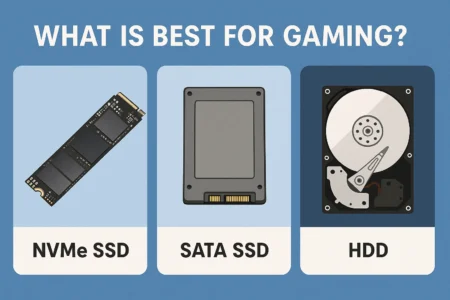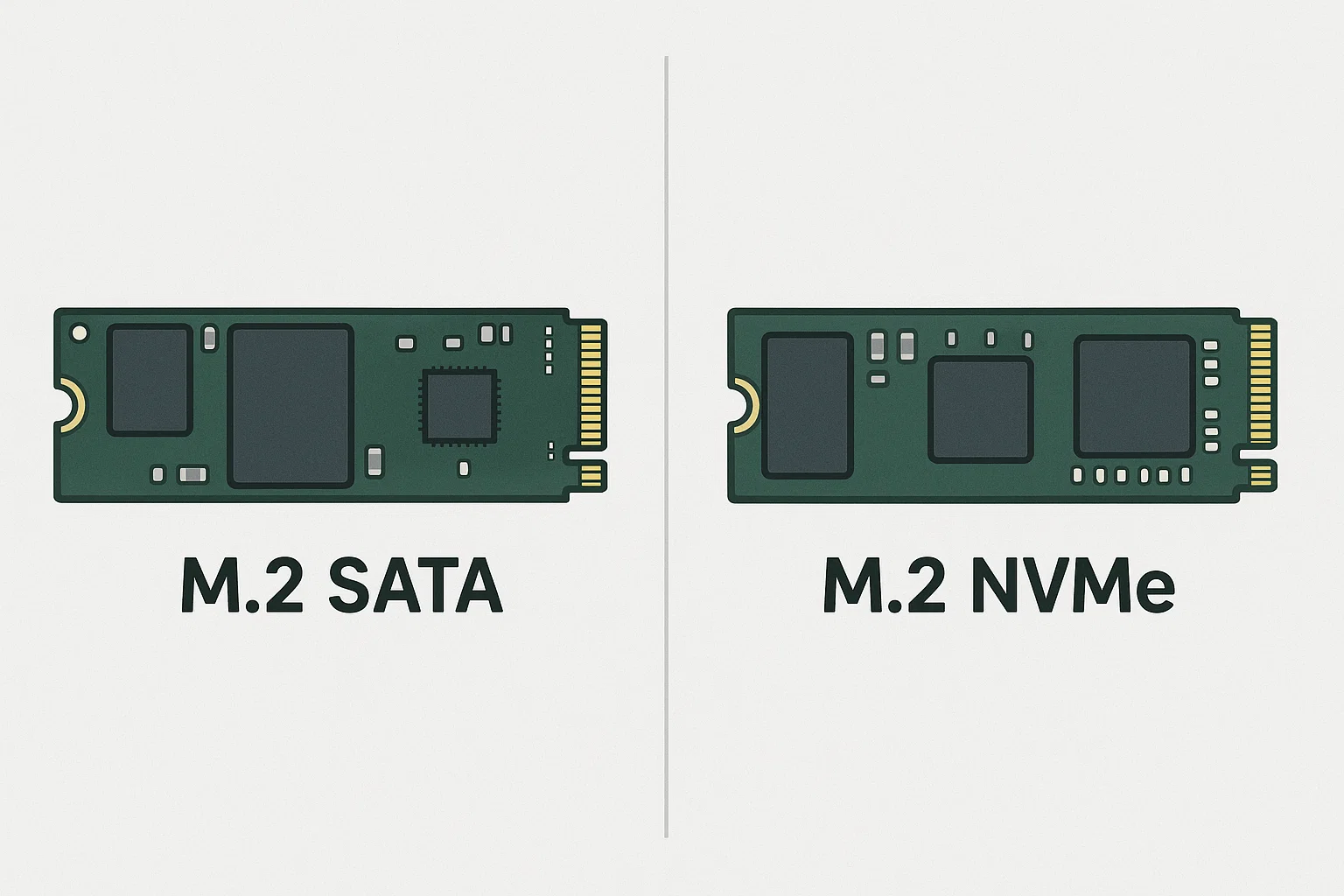
You’re there. Staring at a motherboard manual, or maybe you’ve got a laptop cracked open on the kitchen table. Your eyes are glazing over. You keep seeing “M.2,” but it’s always bolted to other confusing nonsense like “SATA” and “NVMe.” One drive is $50. Another one that looks exactly the same is $150.
What is going on?
Hey, you’re not alone. I promise. This is easily one of the most confusing hurdles in buying storage right now. You just want a fast drive. You just want your computer to work. But the industry has buried the answer under a pile of acronyms.
I’ve been the “family IT guy” and building my own PCs for over 20 years. I’ve lived through it all—from those old, clunky IDE ribbon cables to the first SATA SSDs (which felt like magic), and now to this M.2 stuff. I’ve bought the wrong part. I’ve felt the frustration. And I’ve also felt that absolute joy of a 3-second boot time.
So, let’s settle this. Right here. We’re going to pull this topic apart, demystify it for good, and figure out exactly what you need to buy.
More in Motherboards & Storage Category
What is the best SSD for gaming
How to install an M.2 NVMe SSD
Key Takeaways
Look, if you’re in a hurry, here’s the 60-second version:
- M.2 is Just the Shape: “M.2” is the form factor. Think of it as the physical shape of the plug and the stick. It’s that little “stick of gum” drive. It is not a measure of speed.
- SATA & NVMe are the “Languages”: These are the protocols. This is the language the drive uses to “talk” to your computer.
- SATA is the Old Language: An M.2 SATA drive is just a regular 2.5-inch SSD crammed into the M.2 shape. It uses the older, slower SATA III language, so it’s “stuck” at a top speed of about 550 MB/s.
- NVMe is the New Language: An M.2 NVMe drive is a modern beast. It uses the blazing-fast NVMe language to talk directly to your CPU over the PCIe bus (the same highway your graphics card uses). Speeds go from 3,000 MB/s to over 12,000 MB/s.
- The Slot is Everything: Your motherboard or laptop MUST be compatible. An M.2 slot can be designed for SATA, for NVMe, or (sometimes) for both.
- The Notches (Keys) Matter: Those little gaps in the drive’s connector are “keys.” They’re supposed to stop you from plugging the wrong drive in. But they don’t always. Your manual is your only true friend.
Why is This M.2 Stuff So Confusing?
The root of all this confusion is a single, simple problem: the industry decided to use one physical slot (M.2) for two completely different technologies (SATA and NVMe).
It’s a terrible bit of design, if you ask me.
Think of it like this. The M.2 slot is a new, special outlet on your wall.
In this analogy, an M.2 SATA drive is like plugging a classic, 60-watt incandescent lightbulb into that outlet. It fits. It works. It gives you light. But the technology is old, and it has a very clear limit on how bright it can get.
An M.2 NVMe drive is plugging a modern, ultra-bright LED floodlight into that same outlet. It uses the same plug, but the technology inside is from a different planet. It’s vastly more powerful and built for pure, unadulterated performance.
The M.2 shape was designed to replace everything. It was meant to kill off those clunky 2.5-inch drives and the rat’s nest of power and data cables they needed. And it worked! But during the changeover, both the old (SATA) and new (NVMe) technologies had to live together in the same-shaped house.
This is why just searching for “M.2 drive” is a gamble. You might be buying the bulb when you wanted the floodlight.
So What Exactly is an M.2 SATA Drive?
Let’s talk about that incandescent bulb.
The M.2 SATA drive was a bridge. A stop-gap. When M.2 slots first started showing up on motherboards, NVMe was still brand new and wildly expensive. Most computers weren’t ready for it.
So, manufacturers did the most logical thing. They took the guts of their popular 2.5-inch SATA SSDs—the controller chip, the flash memory—and just redesigned the circuit board to fit the new, slim M.2 slot.
Is It Just a 2.5″ Drive in a New Costume?
Yep. That’s exactly what it is.
An M.2 SATA drive still talks to the computer using the old SATA III bus. A “bus” is just the data highway it uses. That highway has a permanent, hard-coded speed limit: 6 Gigabits per second. In the real world, after all the technical overhead, that means you will never get more than about 550 MB/s out of it.
I don’t care how cool the sticker on it is. 550 MB/s. That’s the wall.
The only real advantage it has over a 2.5-inch SSD is convenience.
- No cables. This is, admittedly, a huge win. It plugs right into the motherboard, which means you get to ditch both the SATA data cable and the SATA power cable. My cable-management obsession loves this.
- Small size. It’s tiny. This is what allows for those paper-thin laptops, mini-PCs, and other compact builds where a 2.5-inch drive bay is just too bulky.
But in terms of raw speed? It’s the same. A 1:1 match.
Who Should Actually Buy an M.2 SATA Drive Today?
This is a tough one, because their time is almost over. A few years ago, they were the smart budget pick. Today, entry-level NVMe drives are often the exact same price, or even a few bucks cheaper.
But there are still a couple of reasons you might need one:
- You have an older laptop or motherboard with an M.2 slot that only supports SATA. This is the big one. Lots of hardware from 2015-2018 had M.2 slots, but they were only wired to talk the SATA language. An NVMe drive just won’t work. Check that manual.
- You’ve run out of fast M.2 slots. This is common. Your motherboard might have two M.2 slots. The main one is a super-fast NVMe, but the second one is a slower M.2 slot that only supports SATA. If you need more storage, SATA is your only choice for that slot.
- You found an unbelievable bargain. I mean, if you just need a 1TB drive to store your game library (and not necessarily run the OS from) and you find an M.2 SATA for half the price of an NVMe… sure. It’s not a bad drive. It’s just not a fast drive.
For almost everyone else, M.2 SATA is a technology you only buy when your hardware forces you to.
What’s the Big Deal with M.2 NVMe Then?
Now we’re talking. If M.2 SATA is the old tech in a new suit, M.2 NVMe is a completely new animal.
This is the tech that gives you those “is it on already?” boot times. This is the reason M.2 became the standard. This is the floodlight.
What Does “NVMe” Even Stand For?
It stands for Non-Volatile Memory Express.
Okay, let’s be real. That’s a terrible name. “Non-Volatile Memory” is just the engineer’s way of saying “storage that doesn’t forget everything when you turn the power off” (so, SSDs, hard drives, etc.).
The “Express” part is the only bit you need to care about. It refers to PCI Express, or PCIe.
PCIe is the high-speed, multi-lane data superhighway inside your computer. It’s the same thing your massive, power-hungry graphics card (GPU) uses to talk directly to your CPU.
The old SATA protocol was like a long, winding, single-lane country road. It was designed for spinning-metal hard drives, which are, by their nature, slow.
NVMe was designed from the ground up for the instant speed of flash memory. It’s a 16-lane, straight-shot autobahn. It completely cuts out the slow, old SATA controller and gives the drive a direct, high-priority line to the processor.
How Much Faster Are We Really Talking?
This isn’t a small jump. It’s not “oh, that’s a bit snappier.” It’s a “rip the doors off the car and light the tires on fire” kind of difference.
Let’s just look at the numbers.
- M.2 SATA: Tops out at ~550 MB/s.
- PCIe 3.0 NVMe (Entry-level): Starts around 2,000 – 3,500 MB/s.
- PCIe 4.0 NVMe (Current standard): Hits 5,000 – 7,500 MB/s.
- PCIe 5.0 NVMe (The new hotness): Pushes 10,000 – 14,000+ MB/s.
A standard PCIe 4.0 NVMe drive isn’t just a little faster. It’s 13 times faster at reading data than the M.2 SATA drive. A new Gen 5 drive? 25 times faster.
Will I Actually Feel This Speed Difference?
Yes. And no.
This is the real-world-versus-benchmarks part, and I’ve gotta be honest with you.
Will you feel it when you turn on your computer? Oh my, yes. A good NVMe drive will get you from a cold, dead stop to your Windows desktop in 10 seconds. Maybe less. It feels like magic.
Will you feel it when you’re loading a massive video project in Premiere, a giant 3D model, or moving a 100GB 4K video file from one folder to another? You better believe it. It’s the difference between going to make coffee and… not even having time to blink.
But what about loading a video game? Here, the answer is… maybe. For a long time, the difference between a good SATA SSD and a good NVMe SSD was just a couple of seconds on a loading screen. Not a huge deal.
However… this is changing. New technologies like Microsoft’s DirectStorage are now letting games stream assets directly from that super-fast NVMe drive, skipping the CPU. In games that support this, an NVMe drive is a massive, tangible advantage, killing loading screens and that annoying “pop-in” where textures load two seconds after you look at them.
For just browsing the web and writing emails? You won’t feel a thing. But for the big stuff, NVMe is a complete game-changer.
Why Won’t My New M.2 Drive Fit?! (A Guide to Keys)
This is where the pain comes in. This is where you can do all the research, buy the right drive, get all excited… and it all falls apart.
You open your PC. You find the M.2 slot. You go to plug in your new drive. And it… just… won’t… go… in. Or, even worse, it does plug in, but the computer acts like it isn’t there.
This nightmare is almost always caused by the “keying.”
M.2 drives have one or two notches in their gold connector. These are “keys” that are supposed to stop you from installing an incompatible drive.
- B Key: Has a notch on the left side (pins 12-19). This is for SATA or older, slower PCIe x2 drives.
- M Key: Has a notch on the right side (pins 59-66). This is for modern, fast PCIe x4 NVMe drives.
- B+M Key: Has both notches. This is the “universal” key. Almost all M.2 SATA drives use a B+M key. This lets them physically fit in both SATA-wired slots (B-key) and NVMe-wired slots (M-key).
And that last point is where the trouble starts.
My Nephew’s First PC Build (And My “Tech Uncle” Mistake)
I have to tell this story. It perfectly captures the confusion. My nephew was building his first gaming PC last year. I, of course, was the designated “tech uncle” making sure he didn’t light anything on fire.
He had a great B660 motherboard with two M.2 slots. The top slot, right under the CPU, was a PCIe 4.0 M-key slot. The bottom slot, down by the chipset, was a PCIe 3.0 M-key slot.
He bought a 1TB NVMe drive for his main boot drive. We put it in the top slot. Easy. Then, he bought a cheaper 2TB M.2 drive for his game library. This drive happened to be an M.2 SATA model, which meant it had the B+M Key.
“No problem,” I thought. “A B+M key drive will fit in an M-key slot. That’s what the ‘M’ part of the key is for.”
We installed it in that bottom M-key slot. It fit perfectly. We booted up the PC. Nothing. The drive was invisible. Not in the BIOS. Not in Windows.
I was baffled. I’m the tech guy! This shouldn’t happen! After 20 minutes of swapping slots and feeling like a total fraud, I finally did what I should have done first: I read the motherboard manual.
Buried in the technical specs was a line: “M.2_2 slot (M Key), supports PCIe 3.0 x4 mode.” That was it. It did not say “supports SATA mode.” That M-key slot was wired only for the PCIe/NVMe language.
The B+M key on the drive only guarantees it will physically fit. It makes no promise that the slot will actually be able to talk to the drive.
We had to return the M.2 SATA drive and get a budget M.2 NVMe drive. The moment we plugged that one in, it popped up instantly.
It was a humbling lesson. Always, always, always read your motherboard manual. It will explicitly tell you what’s supported.
What Else Do I Need to Worry About?
You’d think that would be the end of it. But no. Once you know you need NVMe, there’s a whole new stack of numbers.
What’s This PCIe 3.0, 4.0, and 5.0 I Keep Seeing?
These are the “generations” of that PCIe highway. Each generation doubles the speed of the one before it.
- PCIe 3.0 (Gen 3): The old standard. Max speed around 3,500 MB/s.
- PCIe 4.0 (Gen 4): The current mainstream. Max speed around 7,500 MB/s.
- PCIe 5.0 (Gen 5): The new kid. Max speed over 14,000 MB/s.
Here’s the good news: they are all backward and forward compatible.
- You can put a fast Gen 4 drive in an old Gen 3 slot. It will work, but it will just run at the slower Gen 3 speeds (~3,500 MB/s).
- You can put a slow Gen 3 drive in a new Gen 4 slot. It will work, but it will just run at Gen 3 speeds. (This is a waste of a good slot, but it’s fine).
The takeaway: Try to match your drive to your motherboard. If your motherboard has PCIe 4.0 slots, buy a PCIe 4.0 drive. You’ll get the full speed you paid for. Buying a Gen 5 drive for a Gen 4 board is a waste of money… unless you plan on upgrading your motherboard very soon.
Do These Little Drives Really Get That Hot?
Oh, yeah. The fast ones do.
All that speed creates heat. A high-performance PCIe 4.0 or 5.0 drive running at full speed can get really hot. If it gets too hot, it will “throttle”—it will intentionally slow itself way down to keep from melting.
This is why almost all new motherboards come with M.2 “heatsinks.” These are just little metal plates that sit on top of the drive to help spread the heat. Use them. They aren’t just for looks.
If your motherboard doesn’t have one, you can buy one for a few bucks. For a high-speed drive, it’s not optional.
M.2 SATA drives, on the other hand, barely sip power. They run cool as a cucumber and almost never need a heatsink.
Should I Care if My Drive Has DRAM?
This is getting into the weeds, but it’s important. A fast NVMe drive needs a “map” to find all your data. The quickest way to store this map is on a tiny, super-fast chip of DRAM cache, right on the M.2 drive itself. Drives with a DRAM cache are more expensive, but they are fantastic at handling thousands of small, random files (like your operating system).
To save money, many budget drives are “DRAM-less.” They use a feature called Host Memory Buffer (HMB), which lets them “borrow” a tiny piece of your main computer RAM (like 64MB) to use as their map.
The short version: For a high-end, heavy-use work computer, a drive with DRAM is better. For a budget-friendly boot drive or a game library, a modern DRAM-less drive with HMB is totally fine. You’ll probably never feel the difference.
If you want to get really deep into how this all works, Purdue University has a great, (if technical) overview on solid-state drive technology.
How Do I Choose the Right Drive for My Build?
Okay, let’s land the plane. We’ve waded through the technical swamp. How do you actually pick?
Step 1: Check Your Manual. I will say this until I’m blue in the face. Get the PDF for your motherboard or laptop. Find the “Storage” or “M.2” section. It will tell you:
- How many M.2 slots you have.
- The length they support (almost always 2280).
- The protocols they support (e.g., “PCIe x4” or “SATA & PCIe x4”).
- The generation they support (e.g., “PCIe 4.0”).
This list is your shopping list. The manual is law.
Step 2: Define Your Use Case.
- Operating System/Boot Drive: You want an NVMe drive. This is not negotiable in 2025. The “snap” of the OS is worth it. A good, budget-friendly PCIe 3.0 or 4.0 drive is perfect.
- Heavy Creative Work (Video/3D): Go big. Get a high-capacity PCIe 4.0 or 5.0 NVMe drive with a DRAM cache. Your time is money. This saves time.
- Game Library: This is the sweet spot for a large, budget NVMe drive. A 2TB or 4TB QLC NVMe drive gives you a great balance of speed and price.
- Old Laptop Upgrade: This is where you must check the manual. If it only supports M.2 SATA, then M.2 SATA it is! You’ll still be happy with the upgrade.
Are M.2 SATA Drives Pointless in 2025?
Not pointless, but they are a niche, legacy product. Their only real job is to provide backward compatibility for all that hardware from 2015-2018. If your hardware needs one, you’ll be damn glad they still make them.
But for everyone else? No. If you are building a new PC or upgrading a modern laptop, you should be looking exclusively at M.2 NVMe drives. The price difference is often zero, and the performance difference is a canyon.
How I Resurrected My 10-Year-Old Laptop
I have one last story. A few years ago, I found my old Dell XPS 15 from my college days. It was a beautiful machine, but it was painfully slow. It had a spinning hard drive, and booting Windows 10 took over two minutes. I’d hit the power button and go make a sandwich.
I opened it up and discovered it had a 2.5-inch bay. I bought a 500GB 2.5-inch SATA SSD. The whole swap took ten minutes.
I cloned the old drive, hit the power button… and the laptop I had given up on booted to the desktop in 15 seconds.
It was, and still is, the single most satisfying, night-and-day upgrade I have ever performed. It felt like I had done magic.
That was with a “slow” 550 MB/s SATA SSD. That’s the baseline we’re talking about. M.2 SATA gives you that same “magic” upgrade, just without the cables. M.2 NVMe takes that feeling and multiplies it by ten.
So, What’s the Final Verdict?
The difference between M.2 SATA and M.2 NVMe isn’t just a number on a box. It’s the difference between a convenient, cable-free version of old tech and a new tech that fundamentally changes how fast your computer feels.
M.2 is the shape. SATA is the slow lane. NVMe is the superhighway.
My advice to you is simple.
First, read your manual. I’m serious.
Second, for any new PC build, buy an M.2 NVMe drive. Just do it. Even a cheap one is a fantastic investment.
And finally, if you’re upgrading any computer that’s still running on an old spinning hard drive, any SSD—SATA, M.2 SATA, or M.2 NVMe—will be the best money you have ever spent on that machine.
Don’t get paralyzed by the acronyms. You know the code now. M.2 is the slot, NVMe is the speed you want. Go build something fast.
FAQ – What’s the difference between M.2 SATA and M.2 NVMe
Why is the M.2 slot often confusing when buying an SSD?
The confusion arises because the M.2 slot supports two different technologies, SATA and NVMe, which look identical in shape but have different key notches and compatibility requirements, making it crucial to check your motherboard manual to ensure compatibility.
Can I use an M.2 SATA drive in an M.2 NVMe only slot?
No, an M.2 SATA drive will not work in an M.2 slot that supports only NVMe/PCIe, because the slot is wired for PCIe/NVMe protocol only, which is incompatible with SATA drives.
How do I identify the key notch on my M.2 drive and what does it mean?
The key notch on an M.2 drive determines its compatibility; B key supports SATA and PCIe x2, M key supports PCIe x4 and NVMe, and B+M key supports both but may only support SATA in some slots. Check your motherboard manual to match the key notch on your drive and slot.